Software marketplace
Moeez Studio — software at moeeztech.shop
Software & website code you can trust
Free Windows desktop tools and website projects—plain language docs, honest listings, and downloads that match what you read on each product page.
- Documented listings
- Updates & walkthroughs
- Email support
Built for real users
Practical software with clear documentation, updates, and feature walkthrough videos.
- Production-ready builds
- Documentation & support
- ZIP downloads or Microsoft Store links
Custom work
Need an app or website built for you?
Tell us your goals and timeline. You will get a clear scope, estimate, and delivery plan for Windows software or web projects—not a generic pitch.
Featured products
Start here—open any card for the full product page. Shop by platform is just below.
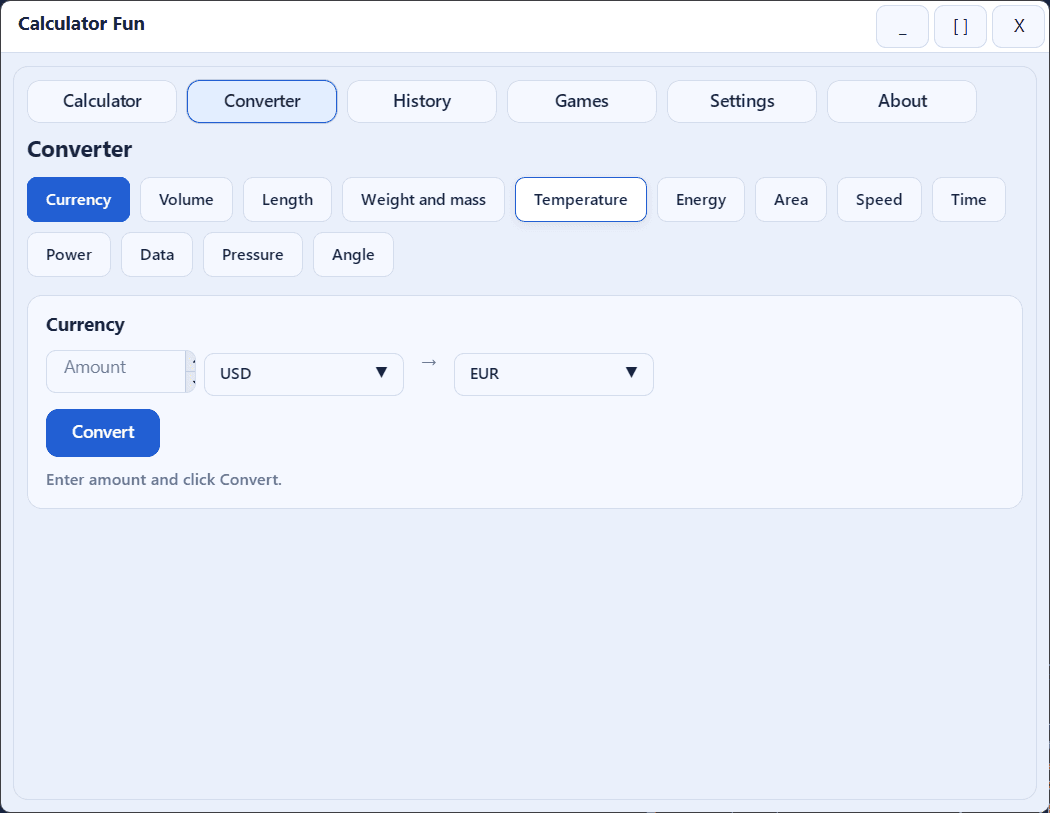
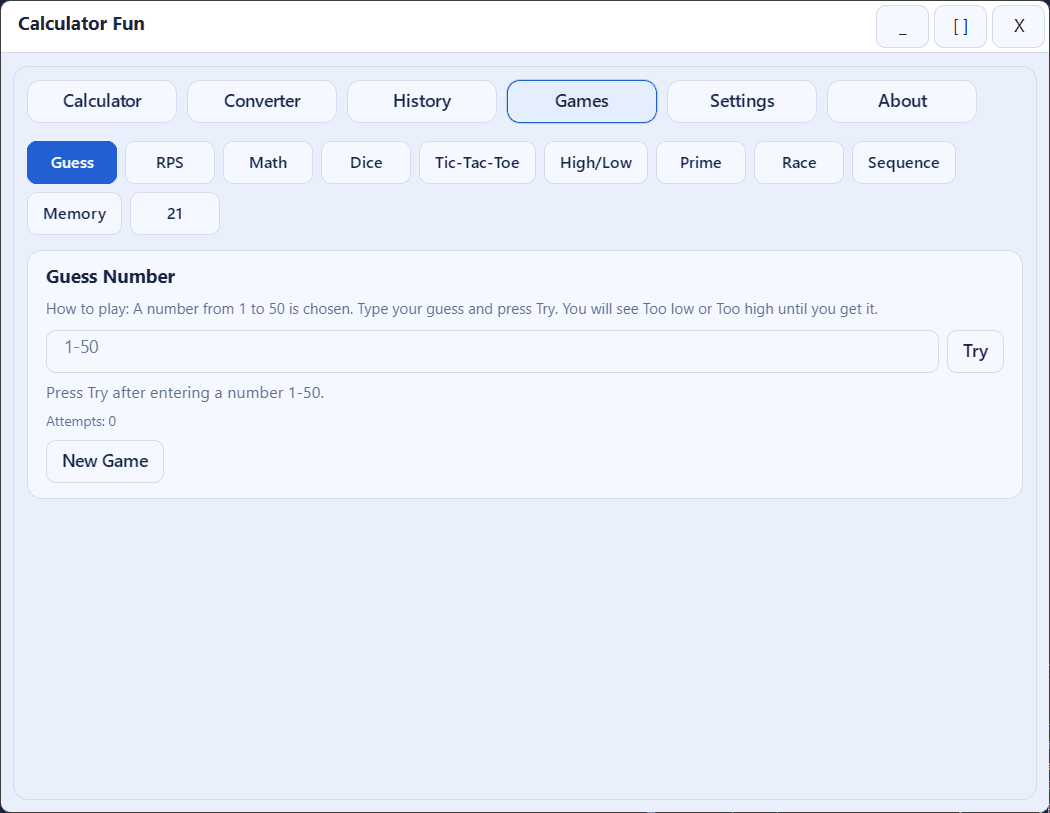
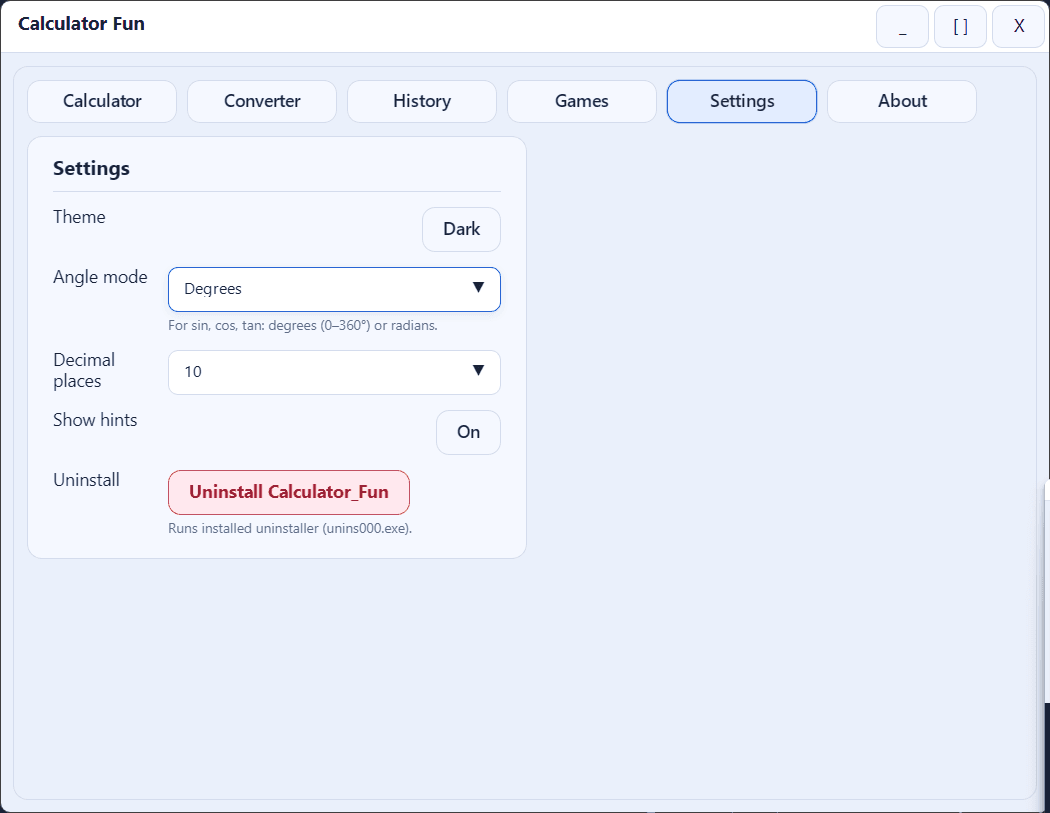
Calculator Fun
All-in-one Windows calculator and learning tool: scientific math, unit converter, history, themes, and built-in mini-games—fast, offline, and keyboard-friendly. Ideal for students, homework, and daily number work.
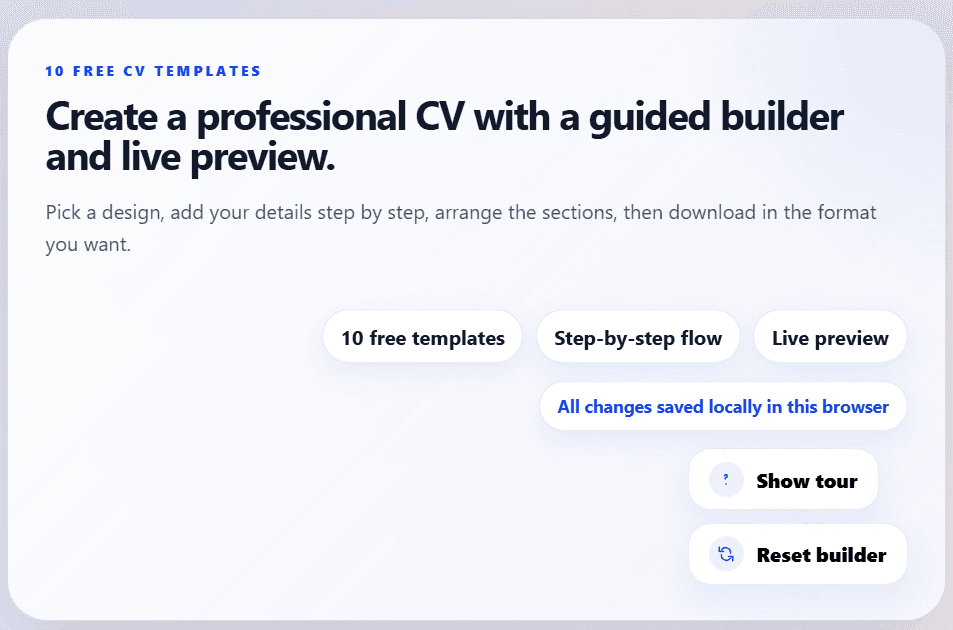
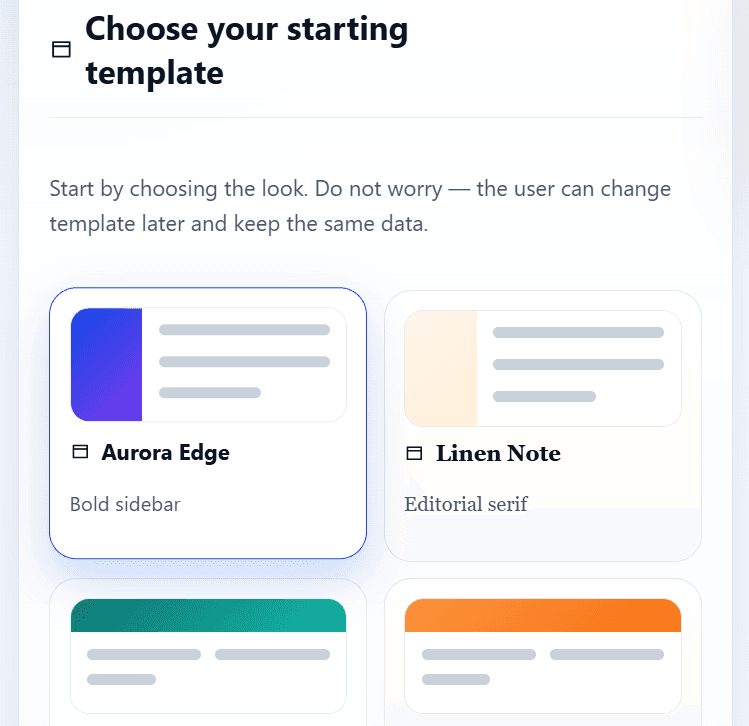
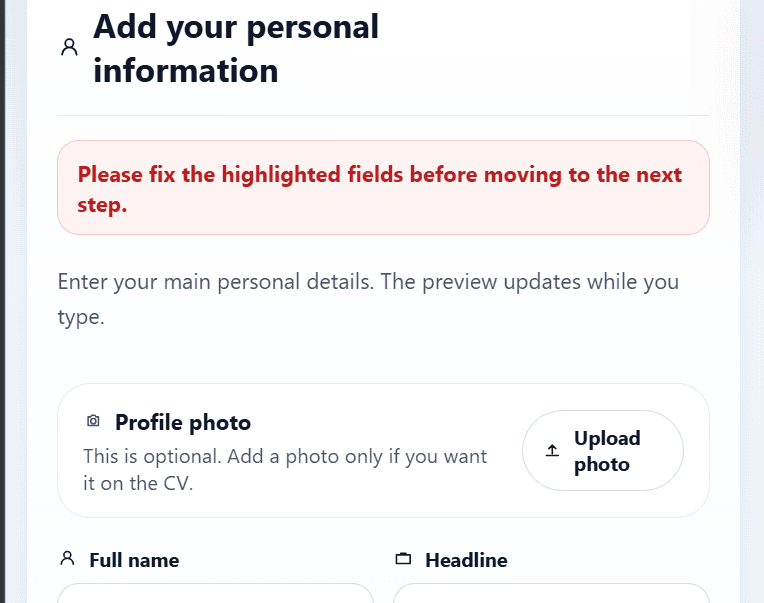
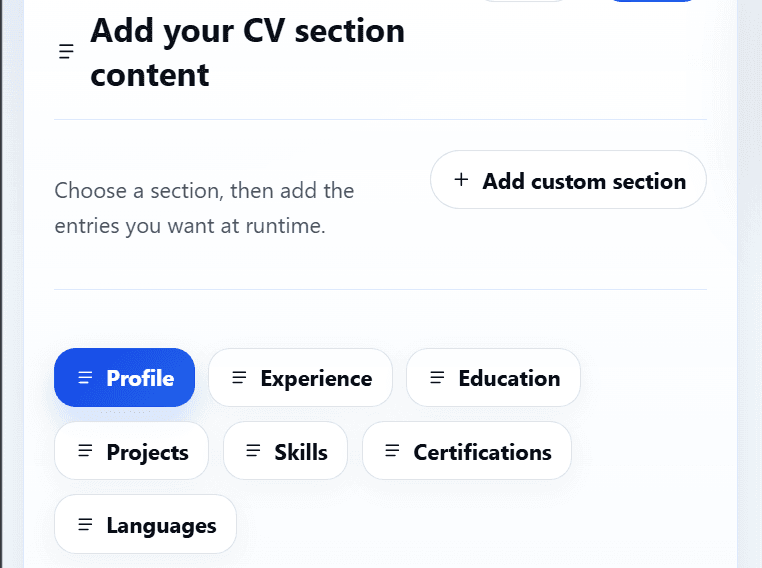
CVMaker
Build a polished CV in the browser: live preview, multiple templates, editable sections, autosave to your device, and export to PDF or DOCX. Great for job seekers who want control without a subscription.
Shop by platform
Jump straight to Windows or website listings. Full category index: Categories.
Blog
Product notes & guides
Beyond the storefront: how our apps and templates work, what changed, and practical tips—short reads you can skim in a minute.
Open the blogCalculator Fun: one Windows app for math, conversion, and quick practice
All-in-one Windows calculator with scientific math, a multi-category unit converter, history, themes, and built-in mini-games—off…
Read article →CVMaker: a practical browser-based resume builder with live preview
Build a polished CV in the browser: templates, live preview, autosave in local storage, and export to PDF or DOCX—no subscription…
Read article →The Moeez Studio lineup: free Windows apps and website code in one shop
How Calculator Fun (desktop) and CVMaker (browser) complement each other—both free today, both built for real daily workflows.
Read article →
Why people choose Moeez Studio
A calm, straightforward shop for apps and code—built for shoppers of any age who value clarity over hype.
Clear documentation
Every listing is written to be easy to follow—so students, professionals, and hobbyists alike can get started without guesswork.
Ready-to-run software
Desktop tools and website projects are packaged for real use—installers, ZIPs, or Store links as described on each product page.
Straightforward delivery
You always know what you are getting: download links, file formats, and setup steps are spelled out before you commit your time.
Responsive support
Questions after download? Reach out through the contact form or email—we aim to reply within a day or two in most cases.
How buying works
Every product page lists exactly what you get. Here is the difference between Windows installers and website source code—then three quick steps.
Three quick steps
Pick a product
Open the card or listing, read features and requirements, then use the download or purchase path on that page.
Install or run
Windows: run the installer. Website: use the terminal commands from the box above when the project uses npm.
Need something custom?
Start a project brief or contact us for anything not spelled out on the page.
Frequently asked questions
Quick answers about downloads, website code, and custom work. For anything else, see Contact.
Click a question to expand and read the full answer.
Each product page explains delivery for that listing. Many apps ship as a ZIP installer or direct download; when a Microsoft Store link is listed, you can install from the Store instead. After download, run the installer and follow the on-screen steps.
Website listings are typically delivered as a downloadable archive (for example a ZIP) with the project source. Product pages include setup notes—often install dependencies with npm and run the dev server locally before you deploy.
Yes. Use Contact or “Request custom work” to describe your scope. You will get a clear plan, timeline, and cost estimate for Windows apps or web projects.
Listings aim for clean delivery and documentation, with walkthrough videos where provided. For questions or issues, use the contact form or email on the site; replies are usually within 1–60 hours.