Notification Desk
Microsoft Store
Capture, search, pin, and alert on Windows notifications. History stays on your PC — no account, no cloud. Available on Microsoft Store.
Opens the Microsoft Store in a new window.
Details
Features
What Notification Desk helps you do
- Save Windows notifications into a searchable local inbox
- Search and filter by app, date, and status
- Pin important alerts so they do not get lost
- Keyword watches for messages that matter at work
- Scheduled reminders with optional sound and popup
- Export history when you need a record
- Runs locally — no account, cloud, or tracking
- Available on the Microsoft Store
Compatibility
System requirements
Get the app (Microsoft Store):
- Use Get from Microsoft Store on this page — it opens the listing: Notification Desk
- Install from the Store, then launch Notification Desk from Start
Requirements:
- Windows 10 or Windows 11
- Microsoft Store access
- Notification access permission (Windows may prompt on first use)
Quick start:
- Allow notification access when asked
- Keep Notification Desk running (or leave it in the tray)
- Search, pin, or set keyword/scheduled alerts as needed
Privacy: Notification Desk Privacy Policy
Overview
Full description
Notification Desk is a Windows desktop app that keeps a searchable archive of your notifications on this PC. Toast alerts disappear from Action Center quickly — this app saves them locally so you can find what mattered later.
There is no account and no cloud sync. History and settings stay on your machine.
What you can do
- Capture Windows notifications into a local inbox
- Search by title, message, or app
- Filter by app, date, status, and sort order
- Pin important items and mark them read
- Set keyword watches or scheduled reminders (optional sound and popup)
- Export history to a file you choose
- Turn capture on or off, and clean up older items in Settings
How to get it
- Use Get from Microsoft Store on this page
- Install Notification Desk from the Store
- Allow notification access when Windows asks, then keep the app running (or in the tray)
Privacy
Notification content stays on your PC. Read the Notification Desk Privacy Policy.
More
Related products
Same category as this listing.
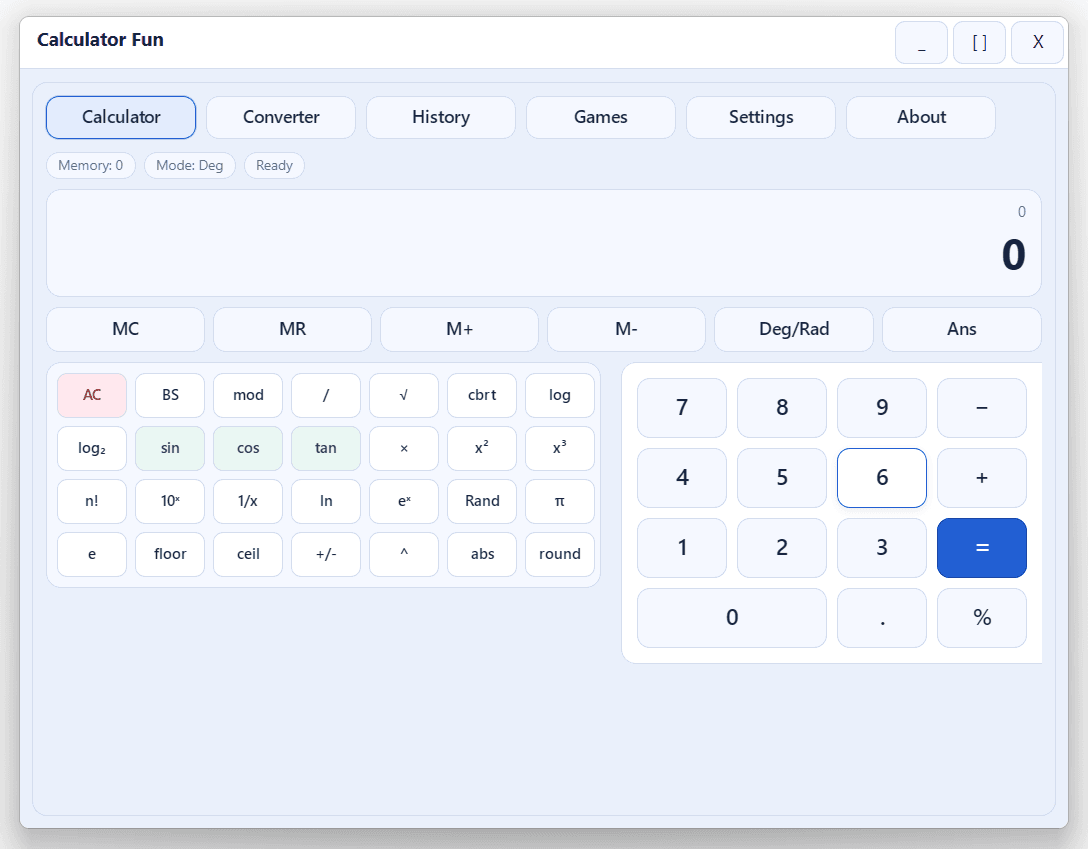
Calculator Fun
All-in-one Windows calculator and learning tool: scientific math, unit converter, history, themes, and built-in mini-games—fast, offline, and keyboard-friendly. Ideal for students, homework, and daily number work.
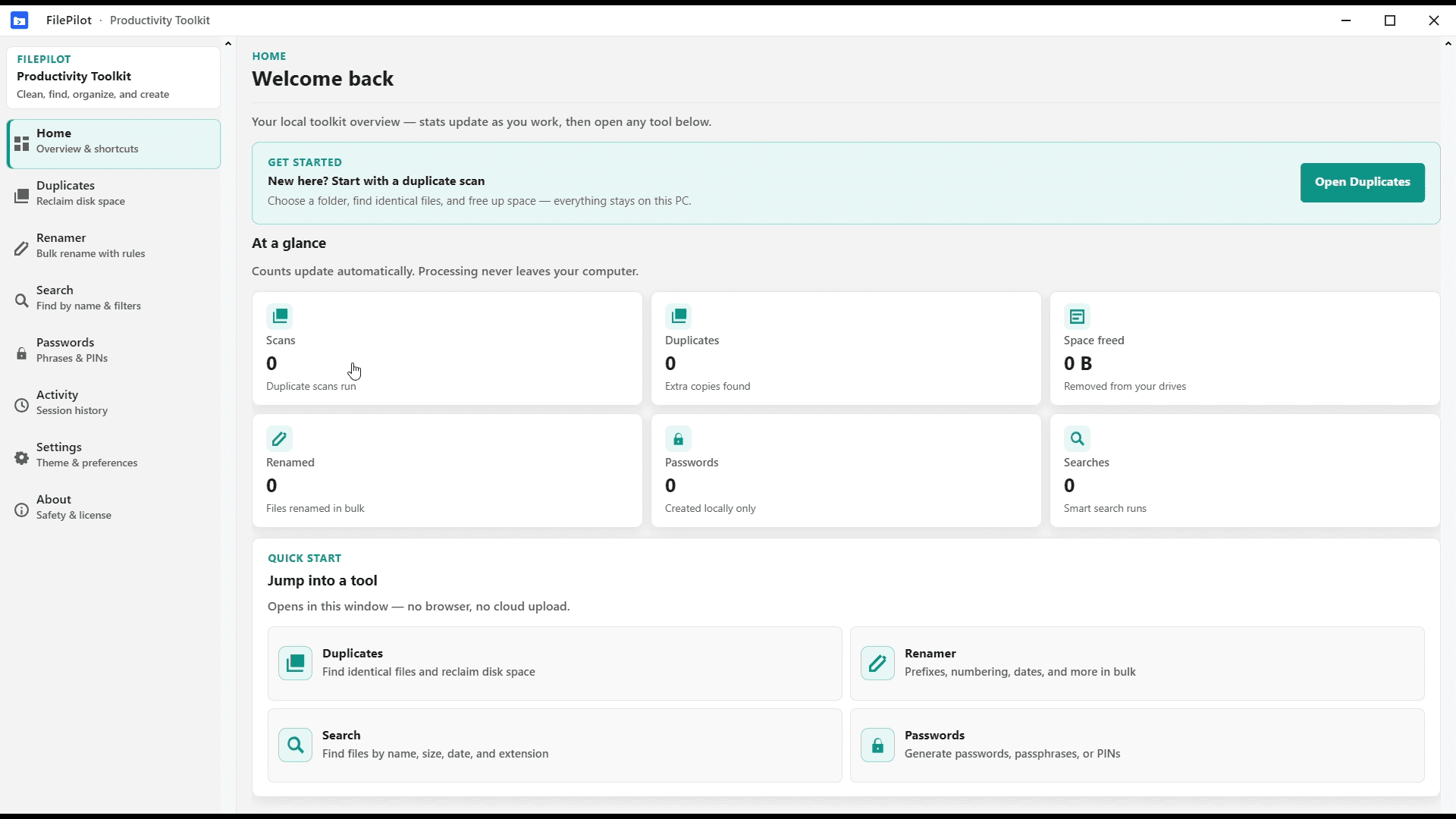
FilePilot MoeezTech
FilePilot MoeezTech was the free Windows MVP for duplicates, rename, search, passwords, and activity. Upgraded to Orderly; source remains on GitHub.
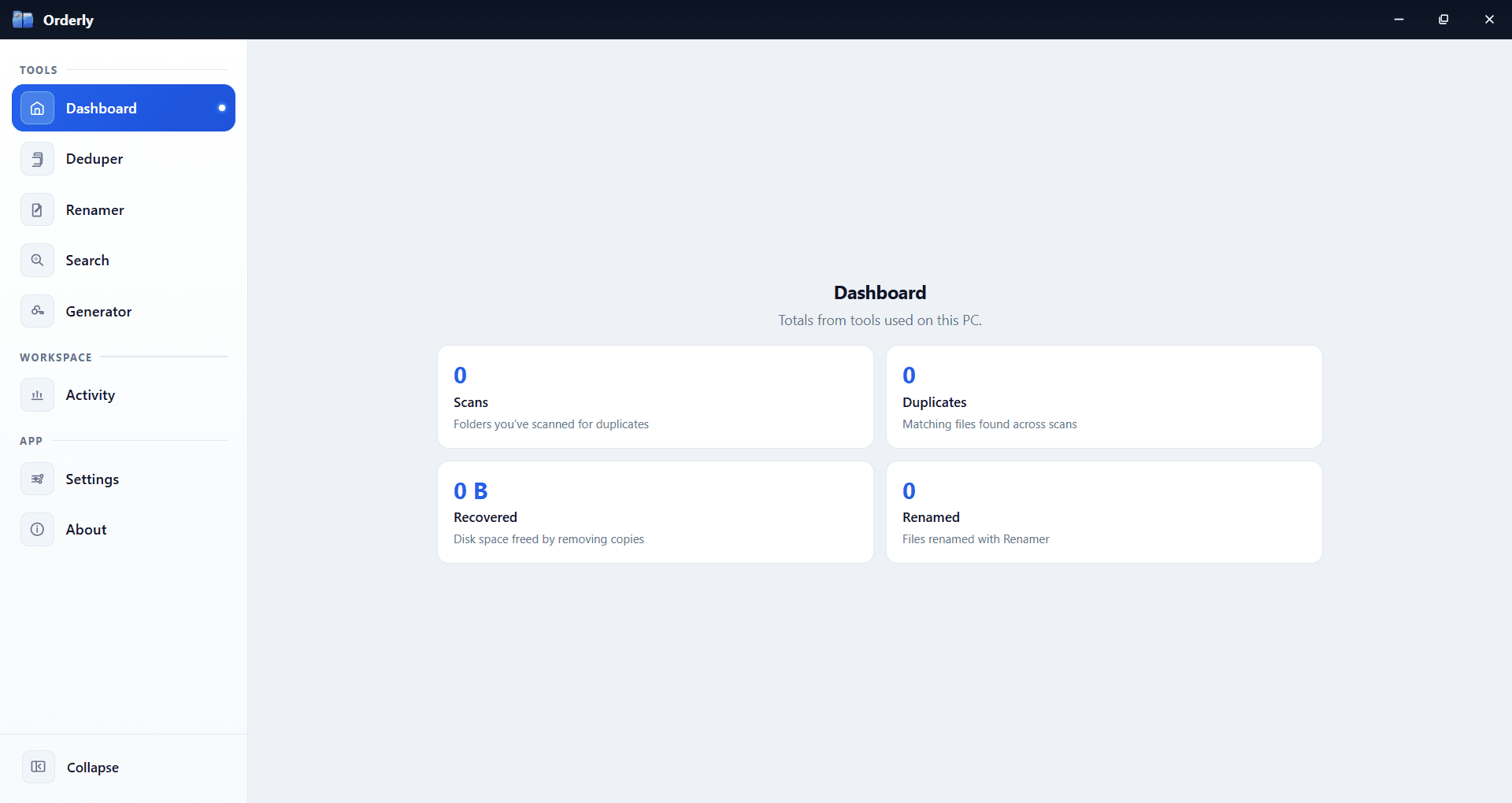
Orderly
Stop fighting your folders. Orderly is a Windows toolkit for duplicates, smart rename, filtered search, passwords, and activity—local on your PC. Available on Microsoft Store.