Orderly
Microsoft Store
Stop fighting your folders. Orderly is a Windows toolkit for duplicates, smart rename, filtered search, passwords, and activity—local on your PC. Available on Microsoft Store.
Opens the Microsoft Store in a new window.
Media
How-to & feature videos
Click a thumbnail to watch full screen.
Details
Features
What Orderly helps you do
- Find duplicate files and reclaim space without blind deleting
- Rename many files with rules you can preview first
- Search by name, size, and date filters that feel natural
- Generate passwords when you need them
- Keep a simple activity trail of recent work
- Runs locally—your files stay on your machine
- Available on the Microsoft Store
Compatibility
System requirements
Get the app (Microsoft Store):
- Use Get from Microsoft Store on this page — it opens the official listing: Orderly
- Install from the Store, then launch Orderly from Start
Requirements:
- Windows 10 or Windows 11
- Microsoft Store access
- Disk space for the app install (your own files stay where they are)
Quick start:
- Open Orderly → pick Duplicates, Renamer, Search, Passwords, or Activity
- Choose a folder and run the tool
- Always review results before permanent deletes or mass renames
Privacy: Orderly Privacy Policy
Overview
Full description
Your folders should work for you—not the other way around.
Orderly is a Windows desktop toolkit for everyday file chaos: identical copies eating space, rename jobs that take forever, searches that miss what you need, and passwords you invent under pressure. Everything runs on your PC. No cloud upload of your files.
Watch the demo, try a tool on a real folder, and tell us what you want next.
What’s inside
- Duplicates — Scan a folder, review identical sets, recycle or delete copies with intent
- Renamer — Stack rename rules, preview changes, then apply (with undo when you need it)
- Search — Folder + filters (size, modified, created) and a clear query you can refine
- Passwords — Generate strong passwords when you need them, with handy presets
- Activity — A simple trail of what you did so you’re not guessing later
- Settings — Theme and defaults that feel like your workspace
How to use it
- Get Orderly from the Microsoft Store (button on this page)
- Open the app and pick a tool from the sidebar
- Choose a folder, run the action, and review results before you delete or rename
- Use Filters on Search when you want size/date constraints; add them to your query when ready
- Check Activity for recent work; adjust Settings for theme and defaults
- Prefer a guided walkthrough? Play the demo video below
Privacy
File tools stay local. Read the Orderly Privacy Policy for details.
More
Related products
Same category as this listing.
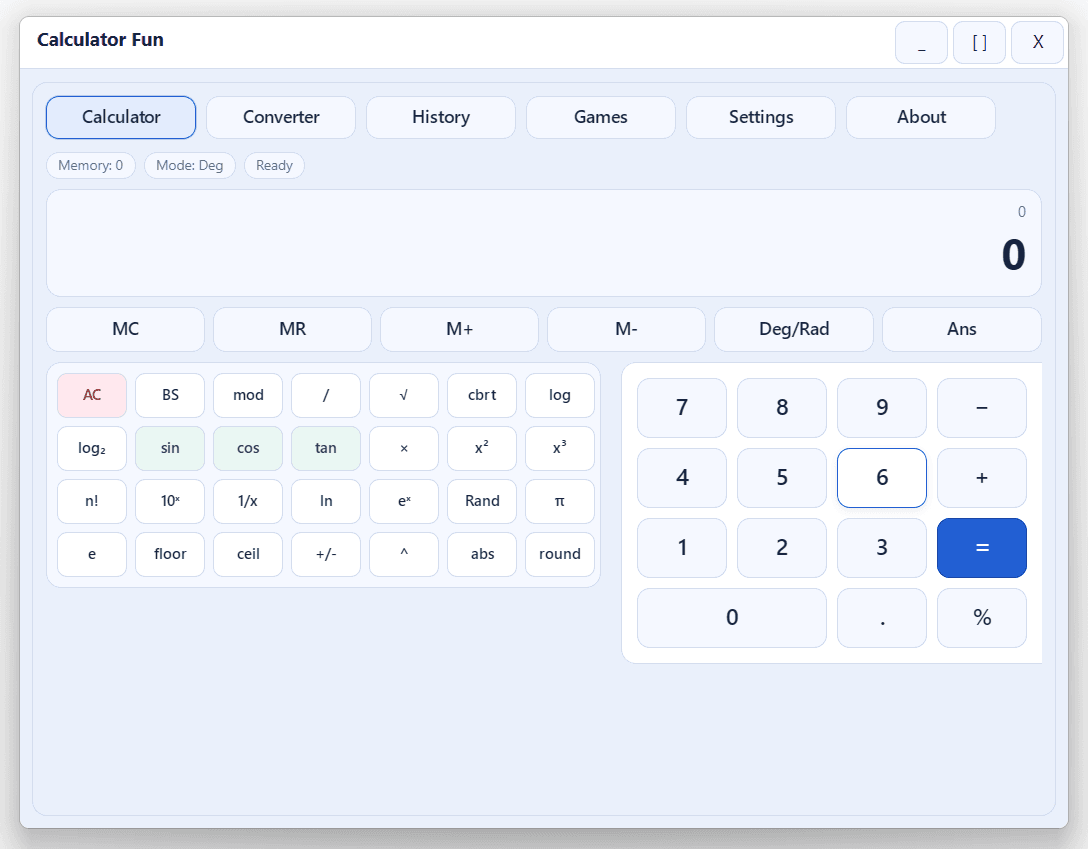
Calculator Fun
All-in-one Windows calculator and learning tool: scientific math, unit converter, history, themes, and built-in mini-games—fast, offline, and keyboard-friendly. Ideal for students, homework, and daily number work.
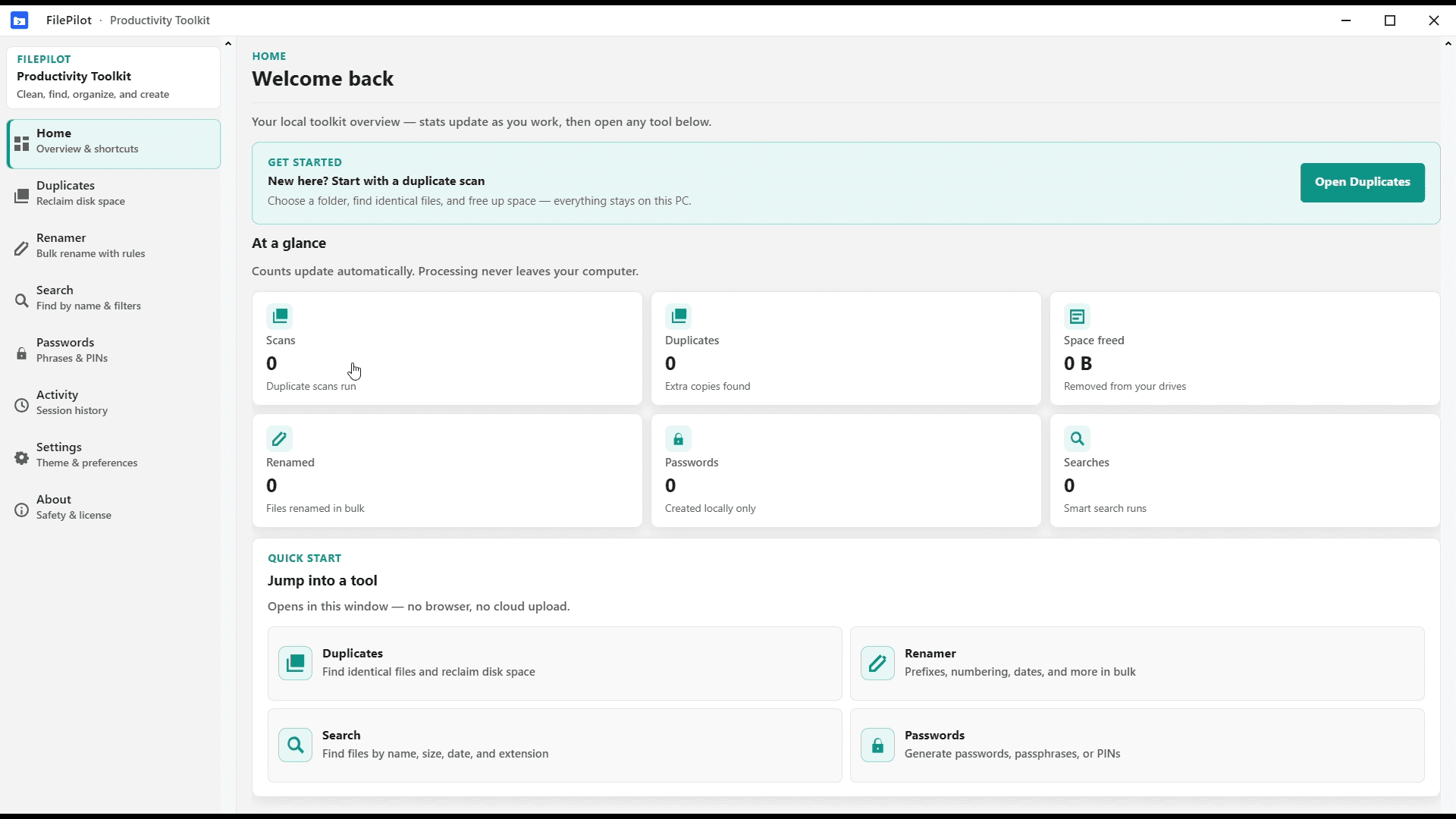
FilePilot MoeezTech
FilePilot MoeezTech was the free Windows MVP for duplicates, rename, search, passwords, and activity. Upgraded to Orderly; source remains on GitHub.
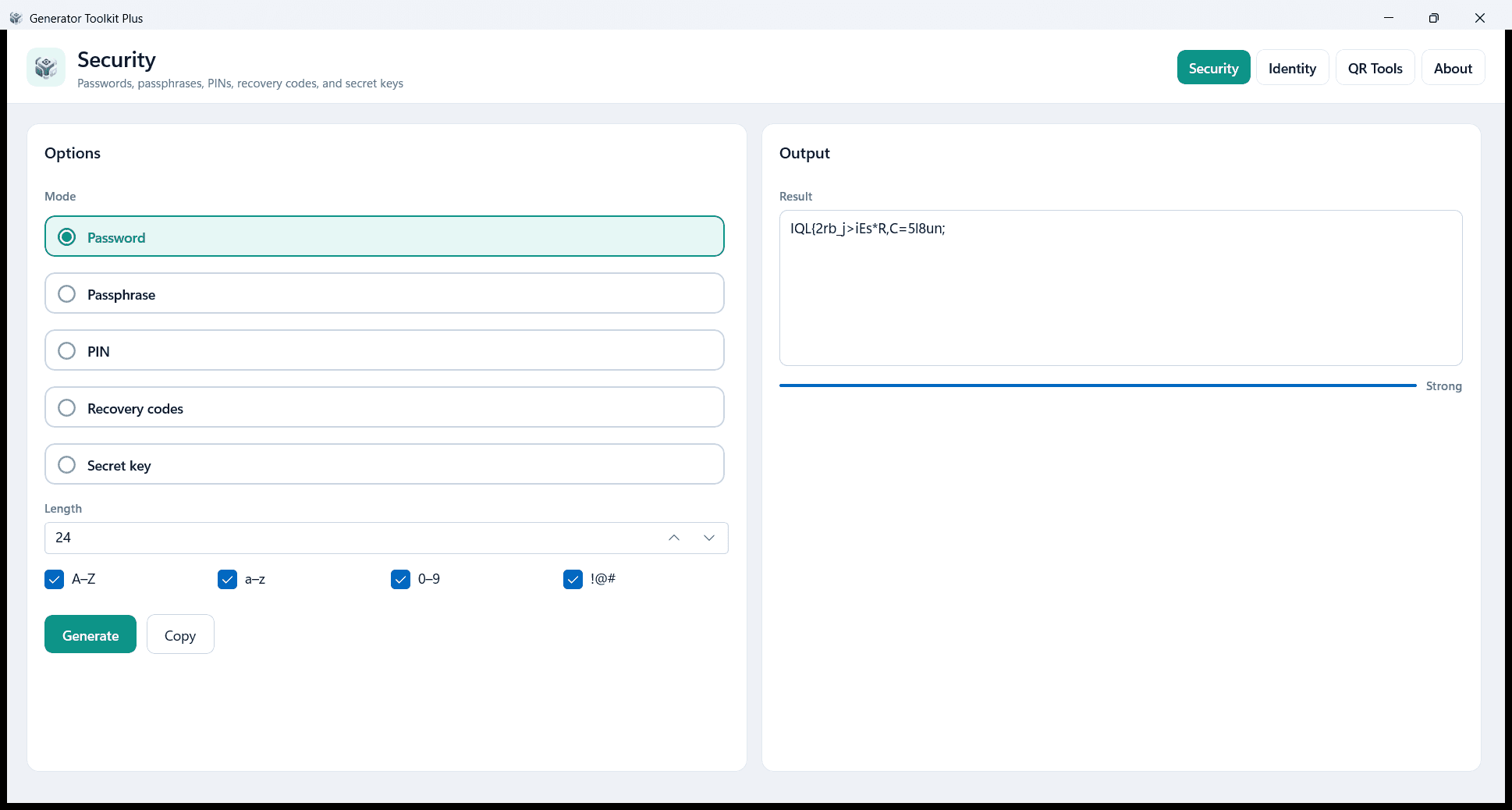
Generator Toolkit Plus
Create passwords, identity IDs, QR codes, and barcodes on your PC. Local and private — no account and no cloud. Free on Microsoft Store.